How bad is your ADI Part 3 training?

70% FAIL the Adi part 3 exam
ADI Part 3 Pass Rate Falls Below 30% – Is Your Training Really Preparing You?
The latest figures released by the DVSA should concern every trainee driving instructor.
For the 2024/25 financial year, the national ADI Part 3 pass rate fell to just 28.9%. In simple terms, more than 7 out of every 10 candidates failed the final qualifying exam.
That raises an important question, Why are so many people failing?
Don't do classroom training for ADI Part 3
While nerves, lack of experience and poor preparation all play a part, there is another issue that isn't discussed often enough...
The quality of the training itself.
The ADI Part 3 Exam Doesn't Judge You Randomly
One of the biggest misconceptions is that the examiner simply decides whether they like your lesson.
Nothing could be further from the truth.
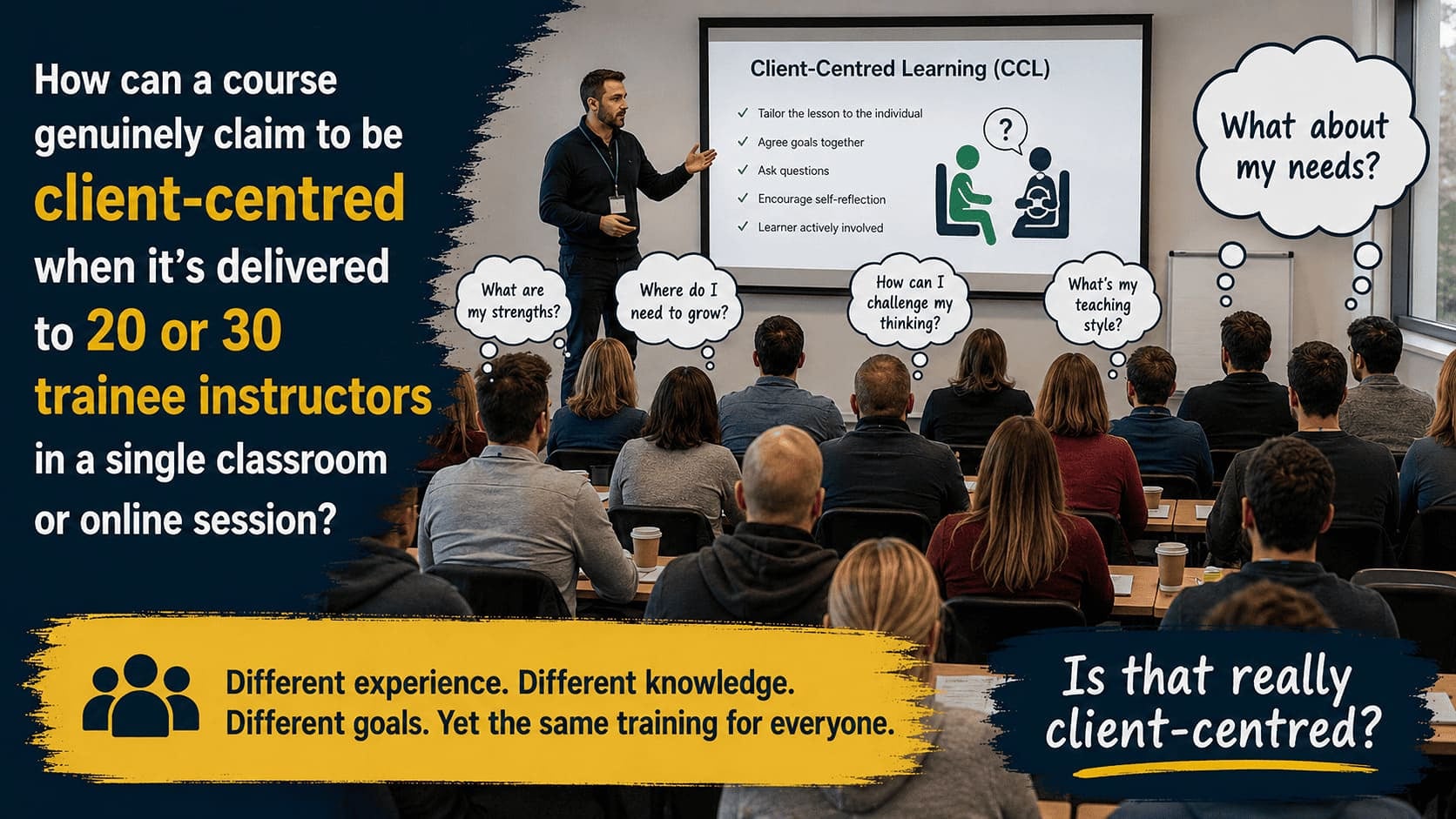
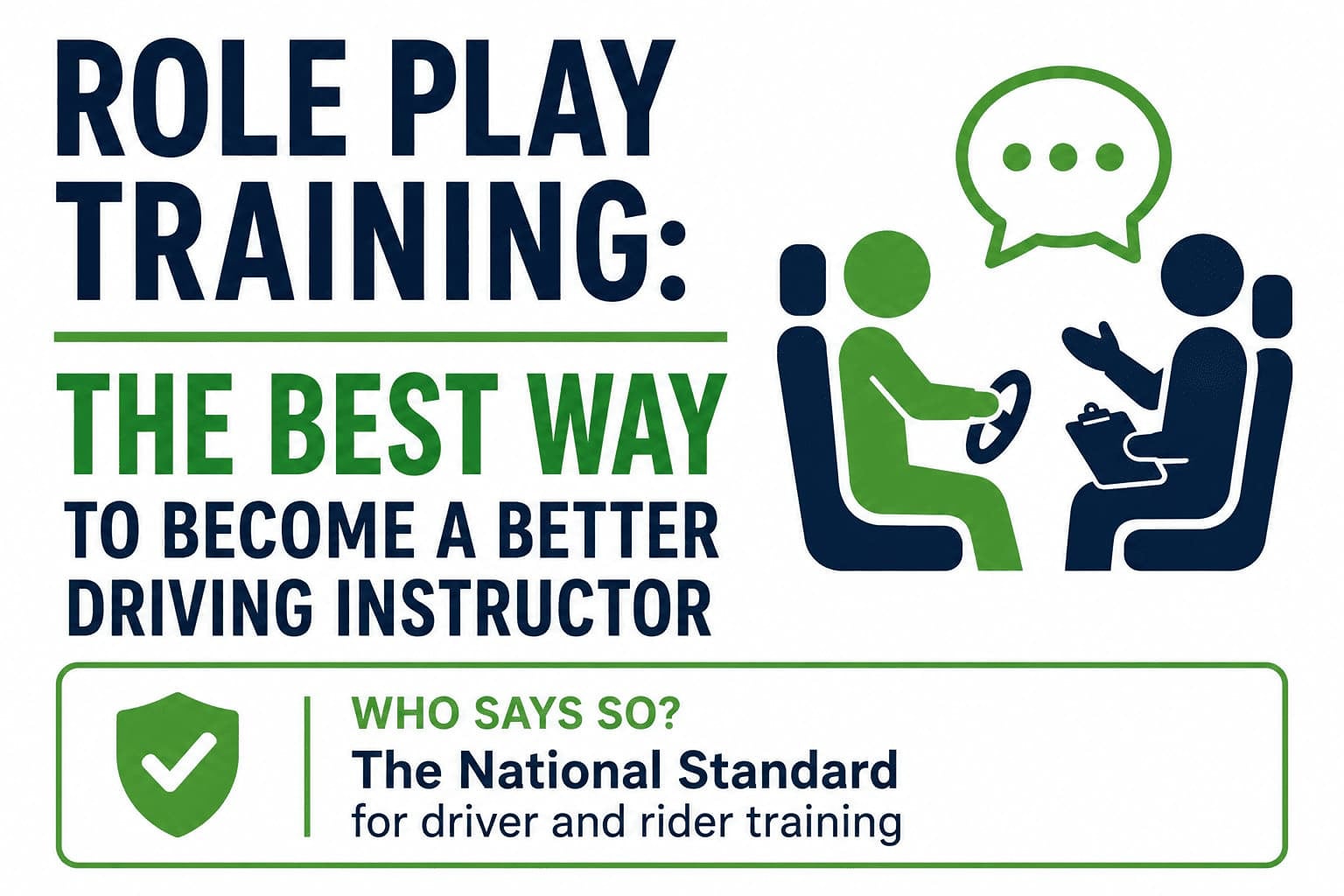
Why the high fail rate?
Every examiner works from exactly the same marking sheet. Your lesson is assessed against 17 competencies, divided into three key areas:
Lesson Planning
Risk Management
Teaching and Learning Strategies
Each competency is clearly described. The examiner isn't looking for perfection—they're looking for evidence that you consistently demonstrate the required skills throughout the lesson.
So here's a simple question.
If that's how you'll be assessed, shouldn't your training be assessed in exactly the same way?
Was the agreed lesson structure appropriate for the pupil’s experience and ability?
To change the appearance of a block, such as the way in which it is laid out and the width of its columns, click on the Change Layout button on the block toolbar, to the right of each block. You can show and hide many of the elements that make up a block by clicking Block Settings on the right hand toolbar and going to the Elements tab. In Block Settings you can also change other aspects of how a block looks, including margins, colours, animations and background images.
Were the practice areas suitable?
You can change the order that blocks appear on your page using the up and down arrow buttons on the right hand toolbar, or you can drag the entire block using your mouse.
Was the lesson plan adapted, when appropriate, to help the pupil work towards their learning goals
To change the appearance of a block, such as the way in which it is laid out and the width of its columns, click on the Change Layout button on the block toolbar, to the right of each block. You can show and hide many of the elements that make up a block by clicking Block Settings on the right hand toolbar and going to the Elements tab. In Block Settings you can also change other aspects of how a block looks, including margins, colours, animations and background images.
Did the trainer ensure that the pupil fully understood how the responsibility for risk would be shared
Click on this text to start editing, and enter your own text with some basic formatting. To create a link to another page or website within this section, select the text you want to make into a link and click on the Link icon on the formatting toolbar. Click anywhere outside the text box when you're done to continue working on the rest of your page.
Were directions and instructions given to the pupil clear and given in good time
Click on this text to start editing, and enter your own text with some basic formatting. To create a link to another page or website within this section, select the text you want to make into a link and click on the Link icon on the formatting toolbar. Click anywhere outside the text box when you're done to continue working on the rest of your page.
Was the trainer aware of the surroundings and the pupil’s actions?
Click on this text to start editing, and enter your own text with some basic formatting. To create a link to another page or website within this section, select the text you want to make into a link and click on the Link icon on the formatting toolbar. Click anywhere outside the text box when you're done to continue working on the rest of your page.
Was any verbal or physical intervention by the trainer timely and appropriate
Click on this text to start editing, and enter your own text with some basic formatting. To create a link to another page or website within this section, select the text you want to make into a link and click on the Link icon on the formatting toolbar. Click anywhere outside the text box when you're done to continue working on the rest of your page.
Was sufficient feedback given to help the pupil understand any potential safety critical incidents
Click on this text to start editing, and enter your own text with some basic formatting. To create a link to another page or website within this section, select the text you want to make into a link and click on the Link icon on the formatting toolbar. Click anywhere outside the text box when you're done to continue working on the rest of your page.
Was the teaching and learning style suited to the pupil's learning style and current ability?
Click on this text to start editing, and enter your own text with some basic formatting. To create a link to another page or website within this section, select the text you want to make into a link and click on the Link icon on the formatting toolbar. Click anywhere outside the text box when you're done to continue working on the rest of your page.
Was the pupil encouraged to analyse problems and take responsibility for their learning
Click on this text to start editing, and enter your own text with some basic formatting. To create a link to another page or website within this section, select the text you want to make into a link and click on the Link icon on the formatting toolbar. Click anywhere outside the text box when you're done to continue working on the rest of your page.
Were opportunities and examples used to clarify learning outcomes
Click on this text to start editing, and enter your own text with some basic formatting. To create a link to another page or website within this section, select the text you want to make into a link and click on the Link icon on the formatting toolbar. Click anywhere outside the text box when you're done to continue working on the rest of your page.
Was the technical information given comprehensive, appropriate and accurate
To change the appearance of a block, such as the way in which it is laid out and the width of its columns, click on the Change Layout button on the block toolbar, to the right of each block. You can show and hide many of the elements that make up a block by clicking Block Settings on the right hand toolbar and going to the Elements tab. In Block Settings you can also change other aspects of how a block looks, including margins, colours, animations and background images.
Was the pupil given appropriate and timely feedback during the session
You can change the order that blocks appear on your page using the up and down arrow buttons on the right hand toolbar, or you can drag the entire block using your mouse.
Were the pupil’s queries followed up and answered
Click on this text to start editing, and enter your own text with some basic formatting. To create a link to another page or website within this section, select the text you want to make into a link and click on the Link icon on the formatting toolbar. Click anywhere outside the text box when you're done to continue working on the rest of your page.
At the end of the session - was the pupil encouraged to reflect on their own performance
To change the appearance of a block, such as the way in which it is laid out and the width of its columns, click on the Change Layout button on the block toolbar, to the right of each block. You can show and hide many of the elements that make up a block by clicking Block Settings on the right hand toolbar and going to the Elements tab. In Block Settings you can also change other aspects of how a block looks, including margins, colours, animations and background images.